A Rust-Powered Terminal Dev Environment
Alacritty, Nushell, Zellij and Helix
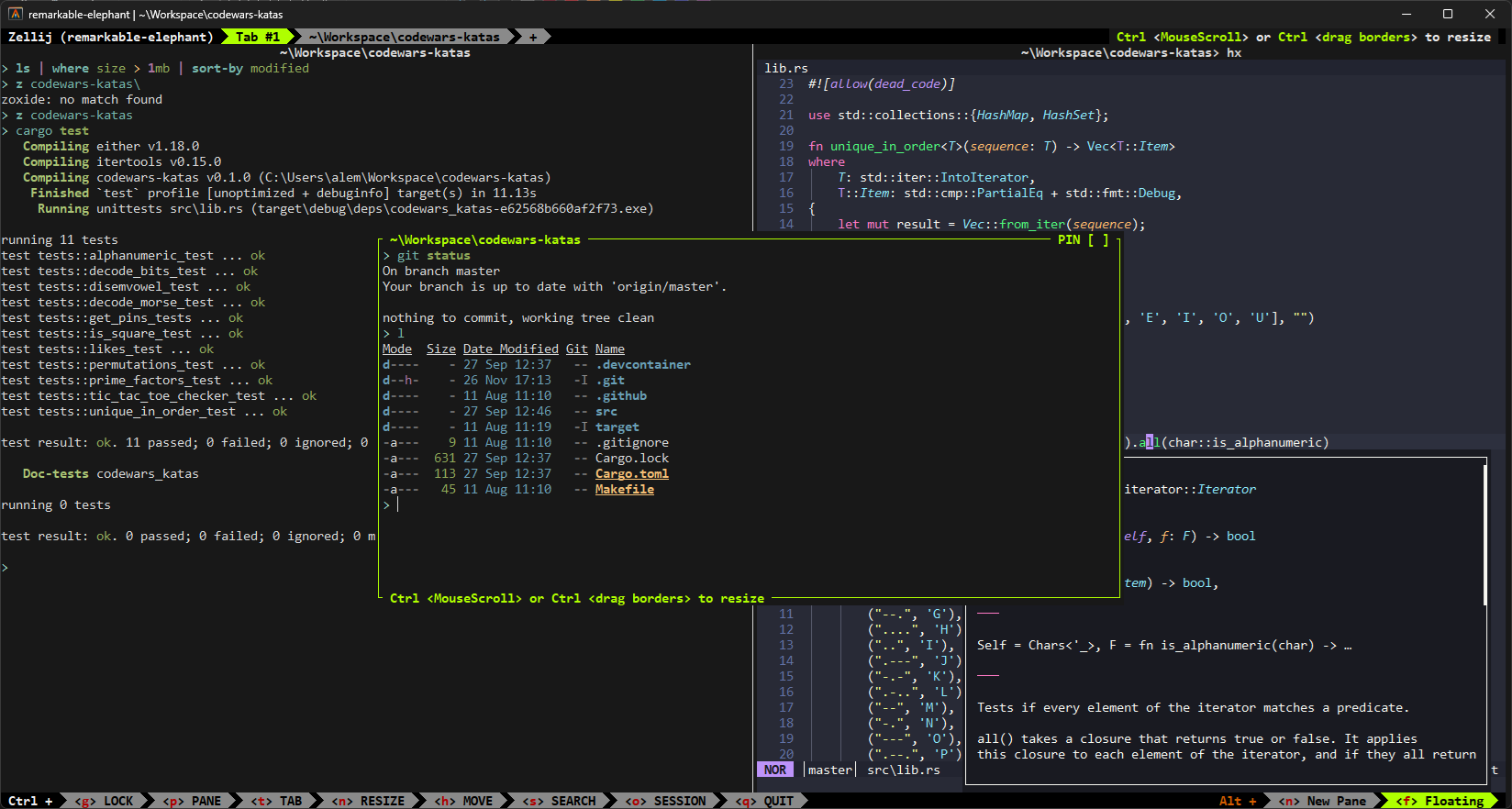
I want my development environment to be the same everywhere. Same keys, same prompt, same editor, whether I am on Windows at work or on a Mac or Linux box at home. The trick that finally made this work for me: build the whole stack from tools written in Rust.
The four pieces:
- Alacritty — GPU-accelerated terminal emulator
- Nushell — a shell that treats output as structured data
- Zellij — terminal multiplexer (tabs, panes, sessions)
- Helix — modal editor with LSP and tree-sitter built in
All four are single binaries, all four are configured with plain text files, and all four run natively on Windows, macOS and Linux. No WSL required, no dotfile gymnastics. In this post I walk through my configuration, explain why each piece earns its place, and list the keybindings I actually use on Windows.
Why a Rust-based toolchain?
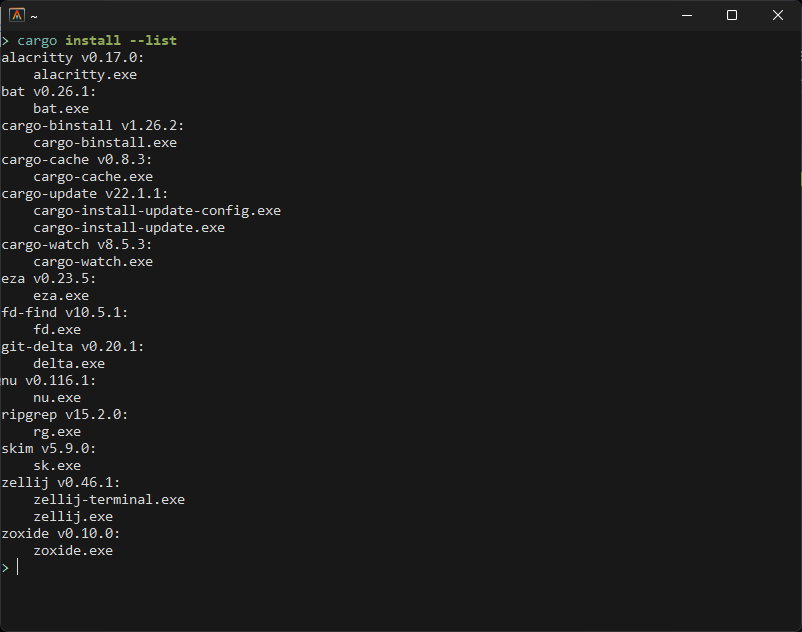
The main reason is portability. Rust tools ship as self-contained native binaries with no runtime to install (no Python, Node or Ruby). If you already have a Rust toolchain, most of the stack is one command away:
cargo install --locked alacritty nu zellij
Helix needs its runtime files (grammars and queries) next to the binary, so for Helix I follow the official installation guide for my platform instead of a bare cargo install.
How the pieces fit together
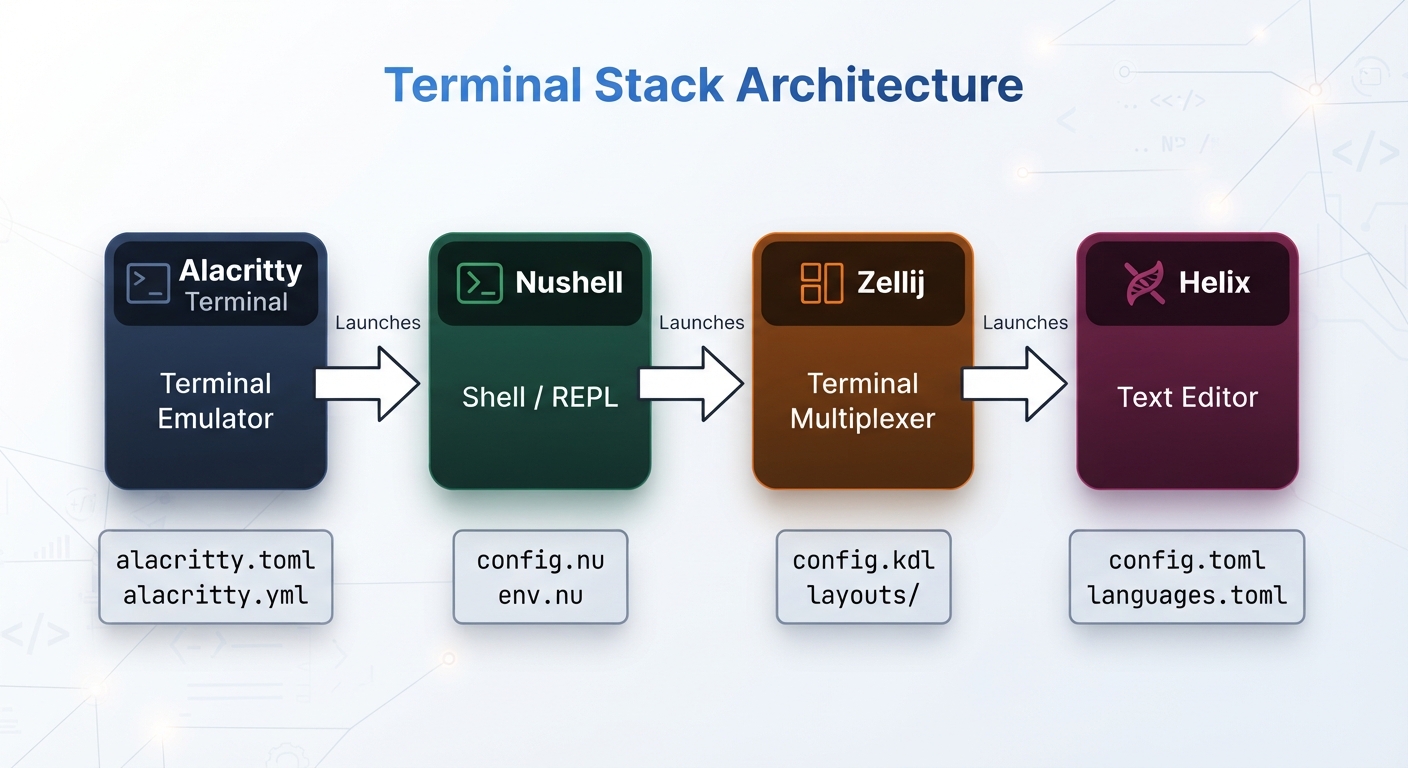
Think of it as a stack, each layer launching the next:
- Alacritty opens a window and starts Nushell as its shell.
- Nushell is also Zellij's default shell, so every pane gets the same environment.
- Zellij splits that window into tabs and panes.
- Helix runs inside a pane, and Nushell is configured to open it whenever a command needs an editor.
The only things that differ per platform are a couple of paths (where the nu binary lives, the starting directory). Everything else is shared.
Alacritty: the terminal
Alacritty does one thing: it draws text fast. It has no tabs and no splits, and that is the point. Zellij handles those, and the same layout then works in any terminal.
Here is my alacritty.toml (on Windows it lives in %APPDATA%\alacritty\):
[scrolling]
history = 100000

# Same macOS keybindings for a consistent experience
[keyboard]
bindings = [
{ key = "+", mods = "Shift|Control", action = "IncreaseFontSize" },
{ key = "_", mods = "Shift|Control", action = "DecreaseFontSize" },
{ key = "C", mods = "Shift|Control", action = "Copy" },
{ key = "V", mods = "Shift|Control", action = "Paste" },
{ key = "H", mods = "Shift|Control", action = "Hide" },
{ key = "M", mods = "Shift|Control", action = "Minimize" },
{ key = "W", mods = "Shift|Control", action = "Quit" },
{ key = "N", mods = "Shift|Control", action = "CreateNewWindow" },
{ key = "F", mods = "Shift|Control", action = "SearchForward" },
{ key = "B", mods = "Shift|Control", action = "SearchBackward" },
{ key = "LBracket", mods = "Control", chars = "\u001b" }
]

[terminal.shell]
program = "C:\\Users\\<you>\\.cargo\\bin\\nu.exe"

[general]
working_directory = "C:\\Users\\<you>"
A few things worth pointing out:
- A huge scrollback (100,000 lines) so I rarely lose build output.
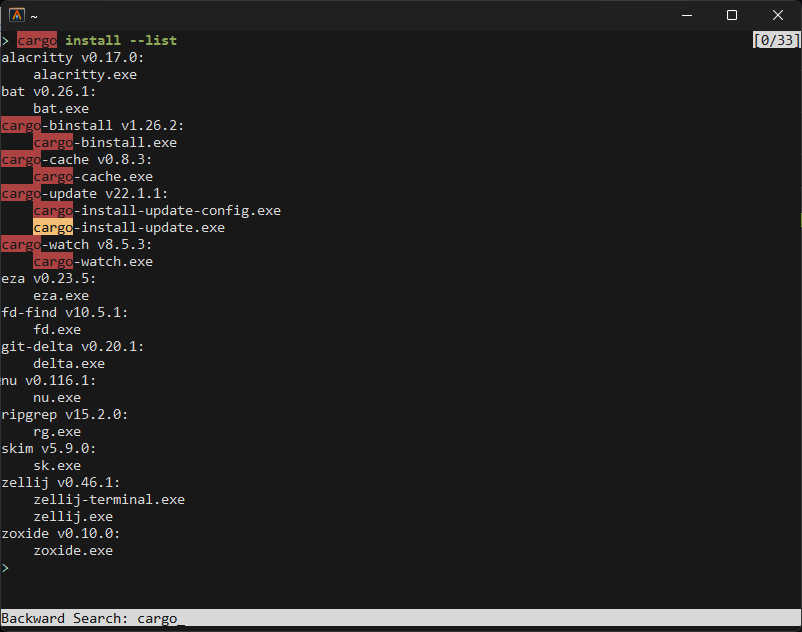
- macOS-style shortcuts, mapped to Ctrl+Shift. Muscle memory carries over from my Mac: copy, paste, new window and search behave the same.
Ctrl+[sends Escape. The last binding writes the raw escape character (\u001b) whenever I pressCtrl+[. If you live in modal editors and a vi-mode shell, this is a classic that saves your pinky.- The shell is set explicitly to the Cargo-installed
nu.exe. On macOS and Linux this is the only line I change (to thenupath on that machine).
Alacritty keybindings on Windows
| Shortcut | Action |
|---|---|
Ctrl+Shift+C |
Copy |
Ctrl+Shift+V |
Paste |
Ctrl+Shift++ |
Increase font size |
Ctrl+Shift+_ |
Decrease font size |
Ctrl+Shift+N |
New window |
Ctrl+Shift+F |
Search forward |
Ctrl+Shift+B |
Search backward |
Ctrl+Shift+H |
Hide window |
Ctrl+Shift+M |
Minimize |
Ctrl+Shift+W |
Quit Alacritty |
Ctrl+[ |
Send Esc (handy for vi mode) |
Nushell: the shell
Nushell is the piece that surprises people. Instead of streams of text, commands return tables, records and lists, so you filter and sort with commands instead of fighting awk and grep quoting rules. And it behaves the same on Windows as on Linux.
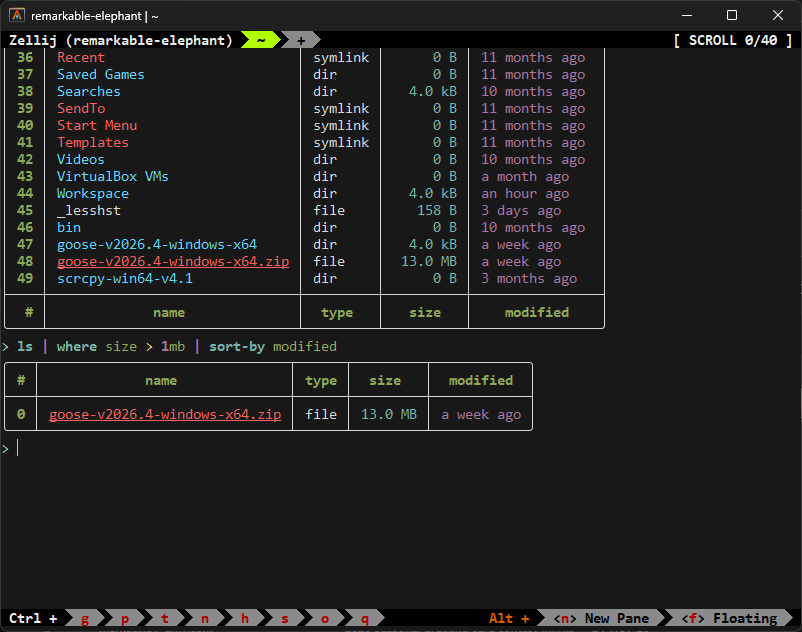
My config.nu, trimmed to the interesting parts:
# minimal prompt
$env.PROMPT_COMMAND = ""
$env.PROMPT_COMMAND_RIGHT = ""

# default editor: Helix
$env.config.buffer_editor = "hx"

# no banner, send deleted files to the system trash
$env.config.show_banner = false
$env.config.rm.always_trash = true

# history in SQLite, shared safely between sessions
$env.config.history = {
  file_format: sqlite
  max_size: 5_000_000
  sync_on_enter: true
  isolation: true
}

# vi mode
$env.config.edit_mode = "vi"
$env.config.cursor_shape = {
  vi_insert: line
  vi_normal: block
}
$env.PROMPT_INDICATOR_VI_INSERT = "> "
$env.PROMPT_INDICATOR_VI_NORMAL = "$ "

# true color
$env.COLORTERM = "truecolor"

# eza aliases
alias l = eza -lah --git --group-directories-first
alias lt = eza --tree

# zoxide (smarter cd)
source ~/.zoxide.nu
And the relevant bits of env.nu:
# Git's bundled Unix tools (less, ssh, ...) on Windows
$env.PATH ++= [ 'C:/Program Files/Git/usr/bin/' ]

# regenerate the zoxide init script on every start
zoxide init nushell | save -f ~/.zoxide.nu
What I like about this setup:
- Empty prompt, vi-mode indicator. No clutter: the prompt is just
>while inserting and$in normal mode, and the cursor changes between a line and a block. The editing mode is always obvious. - Helix as the buffer editor. Press the open-editor key while composing a long command and Helix opens with the buffer.
- Safer
rm. Withalways_trash, deleted files go to the Recycle Bin (or Trash) instead of vanishing. - SQLite history. Searchable, large, and each session keeps its own history while still syncing on enter.
- Rust CLI helpers.
ezareplacesls(with Git status per file) andzoxidereplacescdwith a frecency-based jump (z project). Both are cross-platform Rust tools, so the aliases work anywhere. - Modules. I keep helper commands in
modules/(git_helpers.nu,fzf_helpers.nu,sk_helpers.nu) and load them withuse. - Windows glue. Adding Git's
usr/bintoPATHgives meless,sshand friends without installing a whole Unix layer.
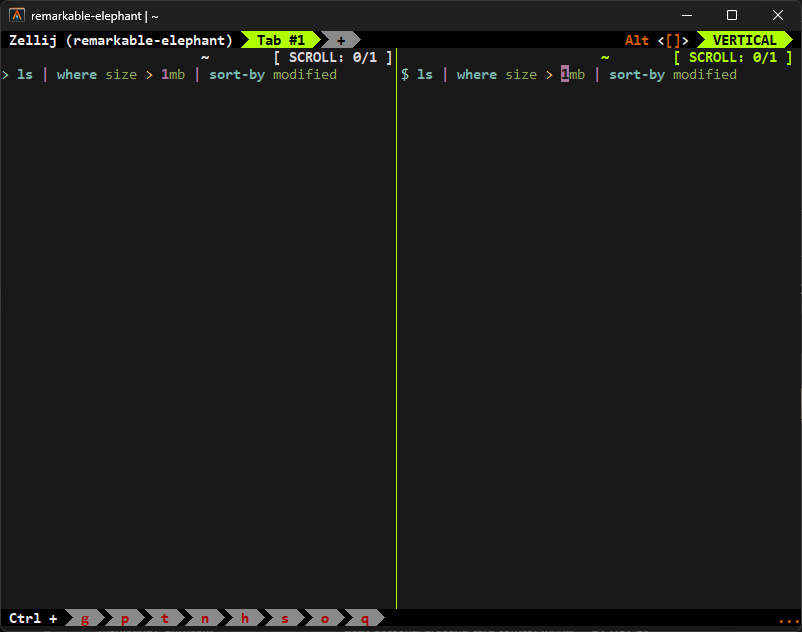
Nushell keybindings on Windows (vi mode)
Nushell uses Reedline, which supports both Emacs and vi editing. With edit_mode = "vi", these are the keys I use most:
| Shortcut | Action |
|---|---|
Esc or Ctrl+[ |
Switch to vi normal mode |
i / a |
Back to insert mode (before / after cursor) |
h l w b 0 $ |
Move left, right, by word, to line start, to line end (normal mode) |
x, dd, u, p |
Delete char, delete line, undo, paste (normal mode) |
Tab |
Complete / open the completion menu |
Ctrl+R |
Search history |
Ctrl+O |
Open the current command line in $env.config.buffer_editor (Helix) |
Ctrl+L |
Clear the screen |
Ctrl+C |
Cancel the current command |
Ctrl+D |
Exit the shell (on an empty line) |
Zellij: the multiplexer
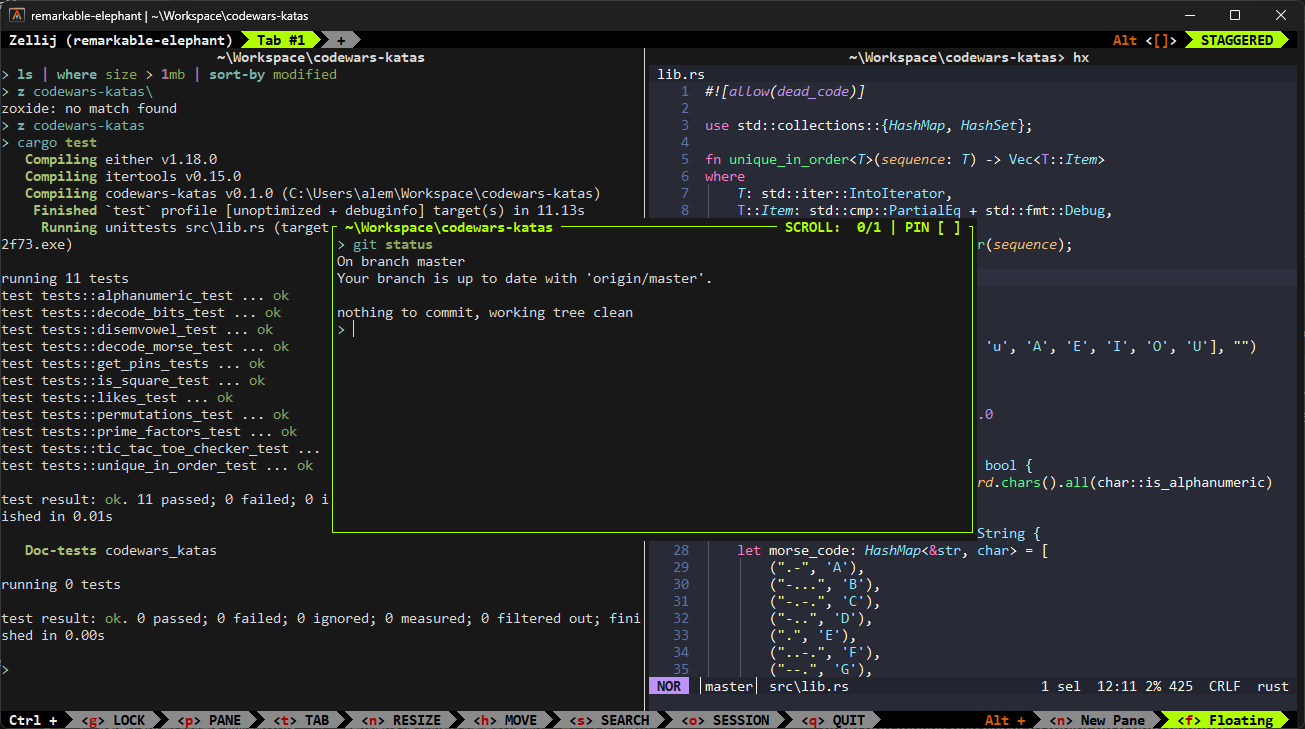
Zellij gives you tabs, panes, floating windows and sessions you can detach from. Unlike tmux, it has a discoverable UI: a status bar always shows the keys available in the current mode. It is also written in Rust, ships as one binary and, importantly for us, it is happy to run Nushell.
The only two lines I had to care about for this stack:
default_mode "normal"
default_shell "C:\\Users\\<you>\\.cargo\\bin\\nu.exe"
I also turned off session serialization and startup tips:
session_serialization false
show_startup_tips false
My keybindings follow Zellij's modal model. A Ctrl chord enters a mode (pane, tab, resize, move, scroll, session), then single keys act inside that mode. I also kept Ctrl+b as a tmux-compatible prefix for the muscle memory from my tmux days, and Alt chords for the things I do constantly (moving between panes and tabs).
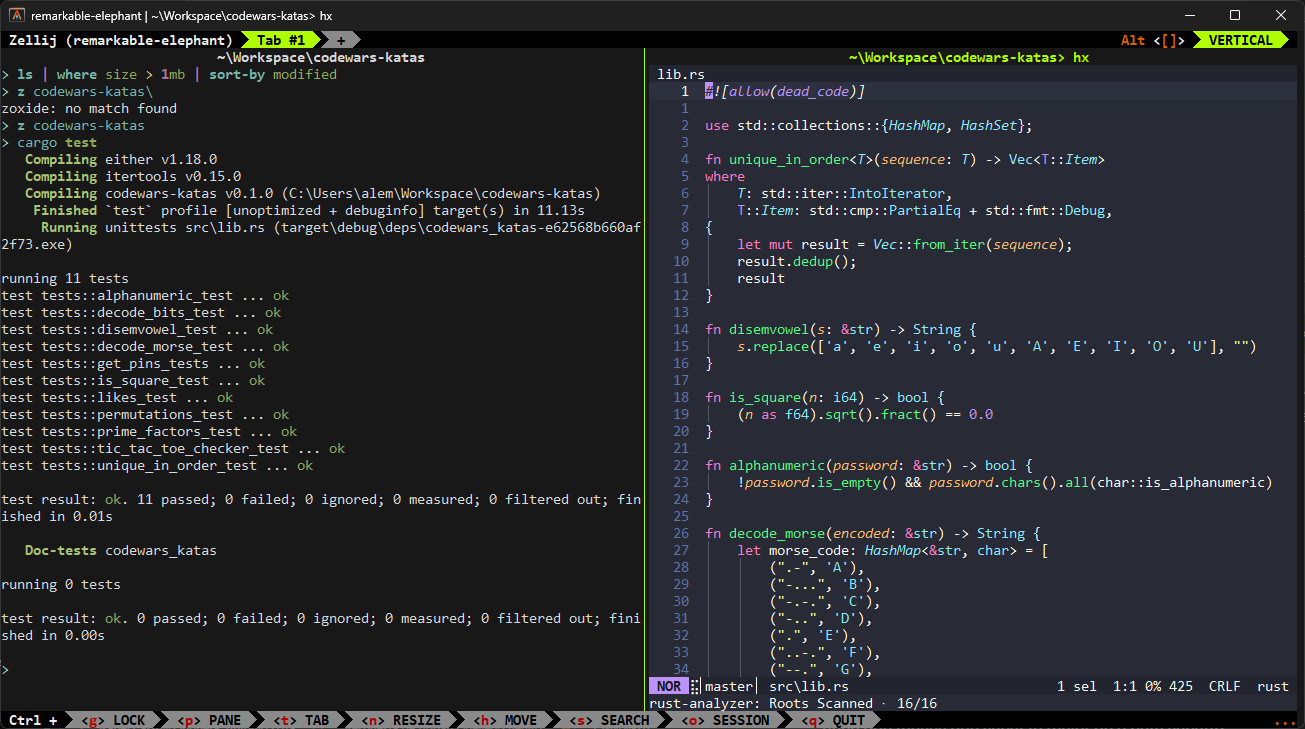
Zellij keybindings on Windows
Always available (outside locked mode)
| Shortcut | Action |
|---|---|
Alt+h j k l (or arrows) |
Move focus between panes (and tabs at the edges) |
Alt+n |
New pane |
Alt+f |
Toggle floating panes |
Alt+[ / Alt+] |
Previous / next swap layout |
Alt++ / Alt+- / Alt+= |
Resize the focused pane |
Alt+i / Alt+o |
Move the tab left / right |
Ctrl+g |
Lock / unlock Zellij (passes every key through to the app) |
Ctrl+q |
Quit Zellij |
Mode switchers
| Shortcut | Mode |
|---|---|
Ctrl+p |
Pane |
Ctrl+t |
Tab |
Ctrl+n |
Resize |
Ctrl+h |
Move |
Ctrl+s |
Scroll / search |
Ctrl+o |
Session |
Ctrl+b |
tmux-style prefix |
Inside pane mode (Ctrl+p)
| Key | Action |
|---|---|
n |
New pane |
d / r |
New pane below / to the right |
h j k l |
Move focus |
f |
Toggle fullscreen for the focused pane |
w |
Toggle floating panes |
e |
Embed / float the focused pane |
c |
Rename pane |
z |
Toggle pane frames |
x |
Close pane |
Inside tab mode (Ctrl+t)
| Key | Action |
|---|---|
n |
New tab |
h / l |
Previous / next tab |
1–9 |
Go to tab by number |
r |
Rename tab |
x |
Close tab |
b |
Break the focused pane out into its own tab |
s |
Sync input across all panes in the tab |
Inside scroll mode (Ctrl+s) and session mode (Ctrl+o)
| Key | Action |
|---|---|
j / k |
Scroll down / up |
u / d |
Half page up / down |
s |
Search the scrollback |
e |
Open the scrollback in your editor (Helix) |
w (session) |
Session manager |
d (session) |
Detach from the session |
Helix: the editor
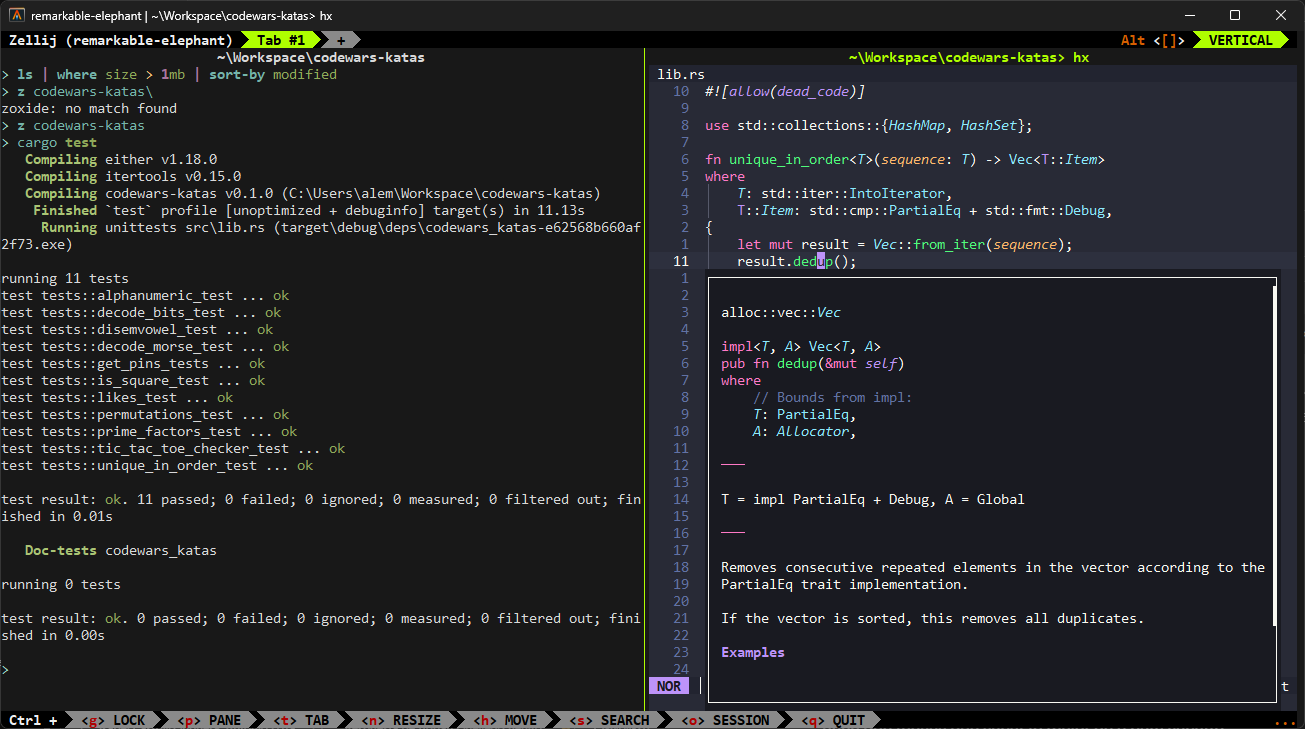
Helix is a modal editor in the Kakoune tradition: you select first, then act. It ships with LSP, tree-sitter syntax highlighting, fuzzy file and symbol pickers and multiple cursors out of the box. For Rust that means rust-analyzer works with zero plugins.
My config.toml:
theme = "dracula"

[editor]
line-number = "relative"
bufferline = "always"
cursorline = true
color-modes = true
popup-border = "all"

[editor.inline-diagnostics]
cursor-line = "hint"

[editor.lsp]
display-progress-messages = true

[editor.cursor-shape]
insert = "bar"

[editor.indent-guides]
render = true

[editor.statusline]
left = ["mode", "spinner", "separator", "version-control", "separator", "read-only-indicator",
        "file-name", "file-modification-indicator", "register"]
right = ["diagnostics", "workspace-diagnostics", "selections", "position", "position-percentage",
         "total-line-numbers", "file-encoding", "file-line-ending", "file-type"]
And languages.toml, which is where the Rust-specific tuning lives:
[[language]]
name = "rust"

#[language-server.rust-analyzer.config]
#check.command = "clippy"

[language-server.rust-analyzer.config.cargo]
allFeatures = true
The highlights:
allFeatures = truemakes rust-analyzer analyze code behind every Cargo feature flag, so#[cfg(feature = "...")]blocks are not greyed out. In a workspace with mutually exclusive features you may want to turn it off.- Clippy on save is one uncommented line away (
check.command = "clippy"). I keep it commented out on large projects where a full Clippy run is too slow. - Relative line numbers + inline diagnostics. Jumping with
5jand seeing compiler errors at the end of the current line is a great combination for Rust's error-driven workflow. - The statusline shows workspace diagnostics and the current Git state, so I always know whether the whole project builds.
A Windows gotcha: the Unimpaired keys
Helix has a handy "unimpaired" mode: [d/]d jumps to the previous/next diagnostic, [f/]f to functions, [g/]g to changes, and so on. On keyboard layouts where [ and ] need AltGr (such as the Spanish layout), Windows reports AltGr as Ctrl+Alt, so the default bindings never fire.
The fix is to bind the same maps to C-A-[ and C-A-] (plus a g [ / g ] pair for jump backward and forward):
[keys.normal.g]
"[" = "jump_backward"
"]" = "jump_forward"

# Fix keys to trigger Unimpaired Mode on Windows
"C-A-[" = { d = "goto_prev_diag", D = "goto_first_diag", f = "goto_prev_function", c = "goto_prev_comment", a = "goto_prev_parameter", t = "goto_prev_class", p = "goto_prev_paragraph", T = "goto_prev_test", g = "goto_prev_change", G = "goto_first_change", space = "add_newline_above" }
"C-A-]" = { d = "goto_next_diag", D = "goto_last_diag", f = "goto_next_function", c = "goto_next_comment", a = "goto_next_parameter", t = "goto_next_class", p = "goto_next_paragraph", T = "goto_next_test", g = "goto_next_change", G = "goto_last_change", space = "add_newline_below" }
If you use a US layout you can skip this block entirely.
Making it multiplatform
To reuse this on another machine:
- Install the tools.
cargo install --locked alacritty nu zellij zoxide eza, then Helix per its install guide. - Copy the config files into each tool's config directory. Run
zellij setup --checkto see where Zellij looks on your platform, andconfig nuinside Nushell to open its files. - Fix the two paths. Update the
nupath inalacritty.tomlanddefault_shellin Zellij'sconfig.kdl, plus the working directory in Alacritty. On macOS and Linux these become something like/Users/<you>/.cargo/bin/nuor~/.cargo/bin/nu. - Drop the Windows-only pieces on other systems: the
PATHentry for Git's Unix tools inenv.nuand theC-A-[/C-A-]Helix bindings.
That is genuinely it. Everything else is shared byte for byte, and I keep all of it in a single dotfiles repository.
Wrapping up
None of these tools is revolutionary on its own, but together they give me a fast, consistent and fully text-based environment that I can rebuild on a new machine in minutes. And because the entire stack is Rust, my daily tools and my daily language now reinforce each other.
If you try this setup, I would love to hear what you change. Next time I plan to cover the Nushell helper modules (git_helpers, fzf_helpers, sk_helpers) in detail.
About the author
Hi, I'm Alvaro. I'm a software engineer working in the space industry. I've worked on many science missions for the European Space Agency like Bepi Colombo, Exomars and Juice. As well as on several satellite telecom projects. Currently I'm working on the Galileo Spacecraft Constellation Control Facility. I have been working on the Galileo program since 2018. It is a global navigation satellite system (GNSS) developed by the European Union (EU) and the European Space Agency (ESA). Its purpose is to provide accurate positioning, navigation, and timing information to users worldwide. In this site I publish articles about programming and software development.